Generate a label
Get a printable shipping label (PDF, PNG, SVG or ZPL) for a booked parcel.
Overview
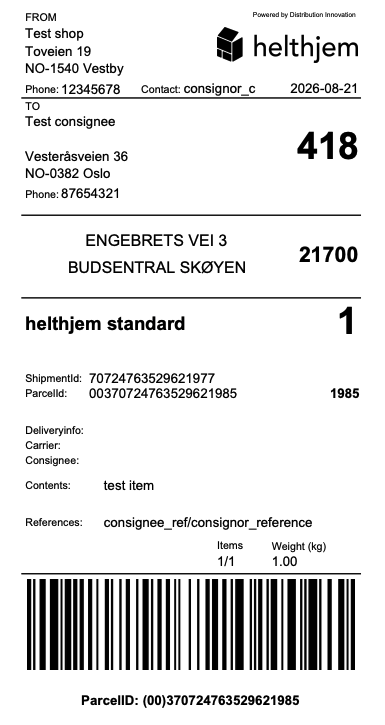
The label endpoint returns a complete standard shipping label. The layout varies slightly between freight products.
A label is only available after the shipment is registered. If you book and fetch the label in one flow, wait for a successful booking response before you request the label. If you register shipments by file or another method, allow more time before you request the label.
Label formats
| Format | Size | Notes |
|---|---|---|
| PDF, PNG, SVG | 102 mm x 192 mm (unified-large) |
The standard label. |
| ZPL | 4 x 9 inches (101.6 mm x 228.6 mm) at 200 dpi | For thermal label printers. Larger than the other formats, and noticeably slower to generate. |
All barcodes use the GS1-128 format.
Request
Path: GET /parcels/v1/labels/{identifier}/{labelType}
| Path parameter | Description |
|---|---|
identifier |
The shipmentId or trackingReference from the booking response, without the (401) / (00) prefix. For example, (401)70724762337121945 becomes 70724762337121945. |
labelType |
Always unified-large. |
Accept header
Use the Accept header to choose the label format. The header is required.
Accept value |
Format |
|---|---|
application/pdf |
|
image/png |
PNG image |
image/svg+xml |
SVG image |
application/zpl |
ZPL, for thermal label printers |
To receive error messages as JSON, add application/json after the file type, for example Accept: application/pdf, application/json.
Example request
Fetch a PDF label for all items in a shipment and save it as label.pdf:
curl -X GET "https://api.pre.helthjem.no/parcels/v1/labels/70724762337121945/unified-large" \
  -H "Authorization: Bearer your_token" \
  -H "Accept: application/pdf, application/json" \
  -o label.pdf
Fetch a ZPL label for a single item, using its tracking reference:
curl -X GET "https://api.pre.helthjem.no/parcels/v1/labels/370724762337121953/unified-large" \
  -H "Authorization: Bearer your_token" \
  -H "Accept: application/zpl, application/json" \
  -o label.zpl
Response
The response is a file in the format you asked for in the Accept header:
- With a
shipmentId, the file has one page for each item in the shipment. - With a
trackingReference, the file has one page for that item.
| Status | Response |
|---|---|
200 |
The label file in the requested format. |
400 |
The request is invalid, for example an unsupported Accept value. |
401 |
The token is missing, invalid or expired. |
403 |
Your credentials don't have access to this shipment. |
404 |
No label was found for the identifier. Check that the booking succeeded and that you removed the prefix. |
Error responses are JSON. See Errors for the format.
Custom labels
We recommend the standard label endpoint. You can also design your own label. Contact us at integrations@helthjem.no to discuss the options, and we will guide you through creating a custom label.
See our Label guide for custom label requirements.
See also
- Label guide: standard label layouts and custom label requirements.
- Identifiers: which identifier to use, and how to remove the prefix.